Welcome to the new MemberAccess
We’ve made it simpler for you to manage your super .
What's changed?
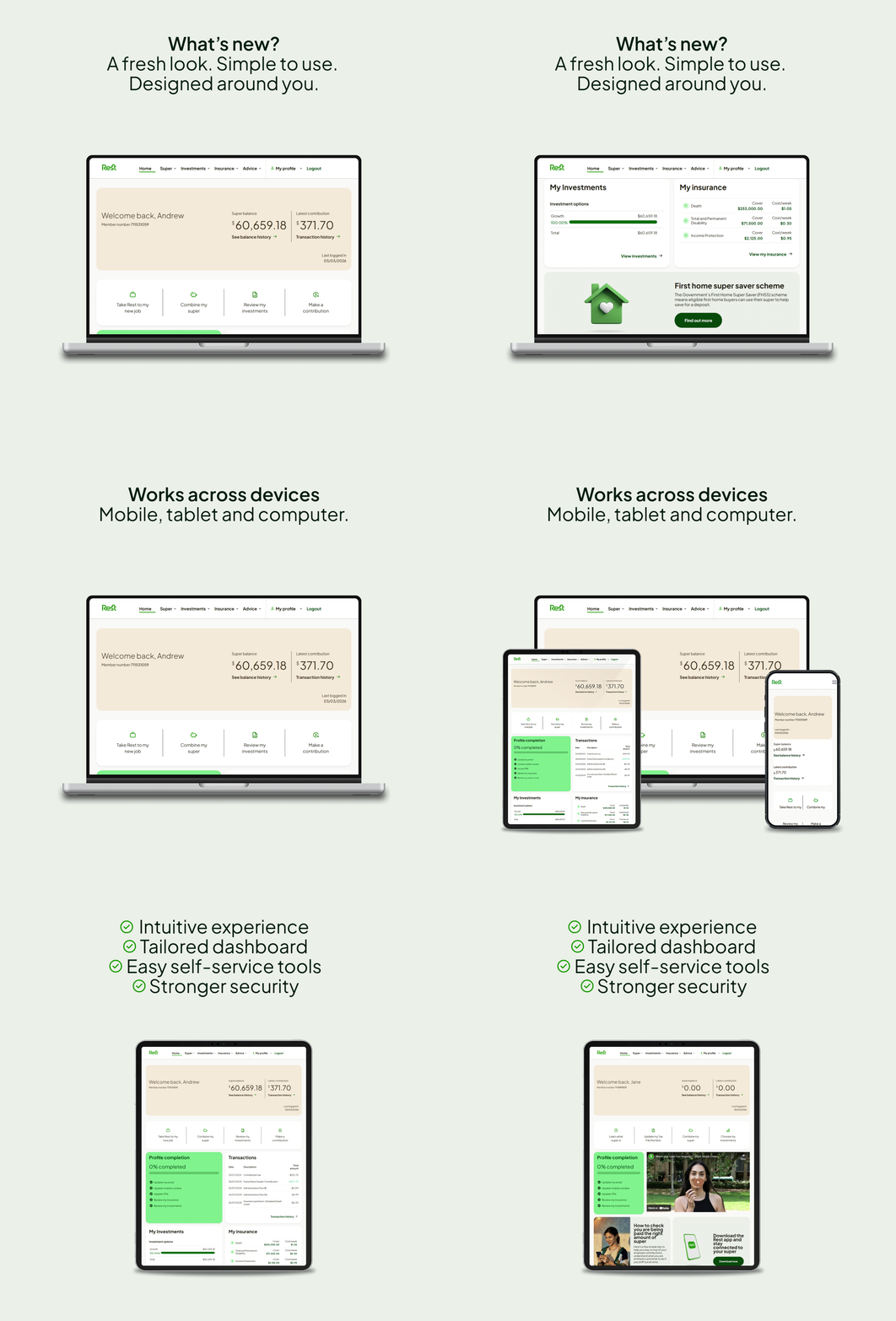
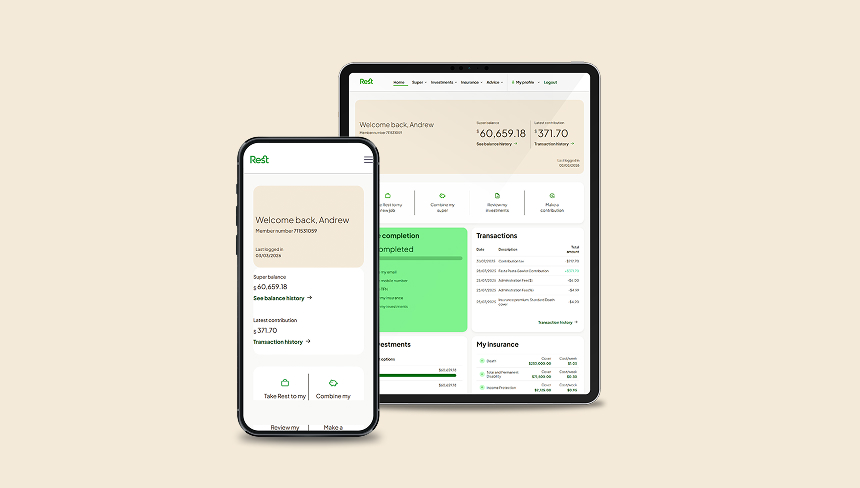
We’ve upgraded MemberAccess to make it simpler, safer, and more helpful. You’ll see a fresh look, stronger security, tailored content, and a smoother experience across all your devices.
You'll notice a few things right away...
All your account information and the features you rely on are still there.
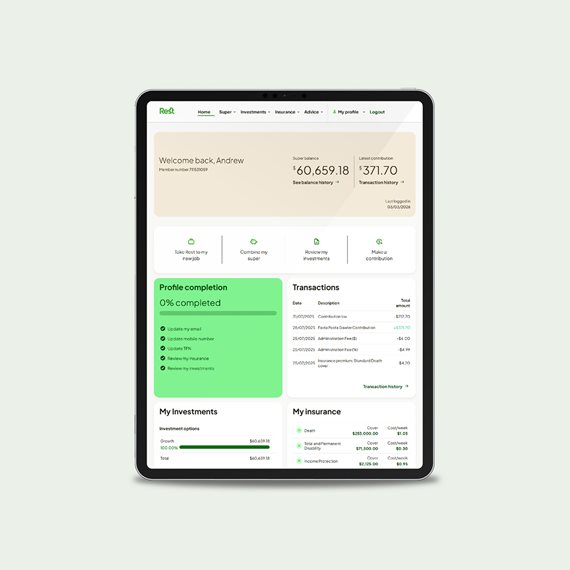
Your dashboard at a glance
MemberAccess is a place to manage the bigger things, with the tools and support you need - all in one spot. Your dashboard helps you quickly check your super and take action when it matters.
Why we made this change
We're committed to continuously making super simple so you can manage your super, and your financial future, with confidence. By modernising our digital experience, we’ve made it more intuitive and easier to use, so we can better support you now and into the future.
Log in to explore the new experience.
Need help?
If you're having trouble accessing your account, it could be because there has been a change to the log in experience. Explore our troubleshooting guide for help. Alternatively, you can find answers to common questions below.
Common questions
Will I need to create a new account?
What do I need to log in?
To log in you will need your:
- Member number
- Password
To help keep your account secure, we need to make sure it’s really you. To do this, we must have both your current mobile number and email address on file. We’ll send a one-time pin to your mobile number or email to verify your identity - you’ll need to enter it to access your account.
What happens if my mobile number or email isn’t up to date?
You’ll need to contact us to update your details so we can check your identity.
The quickest way is to message us on Live Chat, type ‘login issues’ and follow the prompts. Live Chat is available Monday to Friday 8am-8pm or Saturday 9am – 5pm (AEST/AEDT).
Do I still need my password?
Do I need to reset my password?
I’ve forgotten my password?
If you’ve forgotten your password, you’ll need to have both a current mobile number and email address registered to complete the process.
To reset your password, follow these steps:
- Go to rest.com.au, select Log in
- Enter your member number
- Complete the onetime pin (OTP) verification
- When prompted to enter your password select ‘Forgot password’ at the bottom of the screen
- Complete a second OTP verification
- Create and confirm your new password
If you’re unable to complete these steps, you may need to update your contact details or reset your password manually. You can do this by contacting us and we’ll help you get back into your account.
The quickest way is to message us on Live Chat, type ‘login issues’ and follow the prompts. Live Chat is available Monday to Friday 8am-8pm or Saturday 9am – 5pm (AEST/AEDT).
Why do I need both my email and mobile number on file?
With both your email and mobile number registered to your account, we can make sure it’s really you, and that helps us to protect your account from unauthorised access.
Most of the time, you’ll only need to use one of these to access your account. However, in some situations like if you forget your password or if we notice unusual activity, we may ask you to use the other detail to help verify your identity.
What is a one-time pin (OTP)?
What is MultiFactor Authentication (MFA)?
Multi-Factor Authentication (MFA) provides stronger protection against unauthorised access to your account.
It is a security method that means you must prove who you are using two or more different things about you.
These things fall into three categories:
- Something you know (e.g. a PIN, or passphrase)
- Something you have (e.g. SMS sent to your registered mobile number )
- Something you are (e.g. a fingerprint or facial recognition)