Error on phone

Rest App Troubleshooting  

Phone

Having trouble with the Rest App?

There are a couple things you can do:

  1. Ensure you have the minimum required device software. The app requires a minimum iOS 16.4 or Android 9.

  2. Check you have the  latest version of the Rest App. You can update or try re-installing the app in your app store.

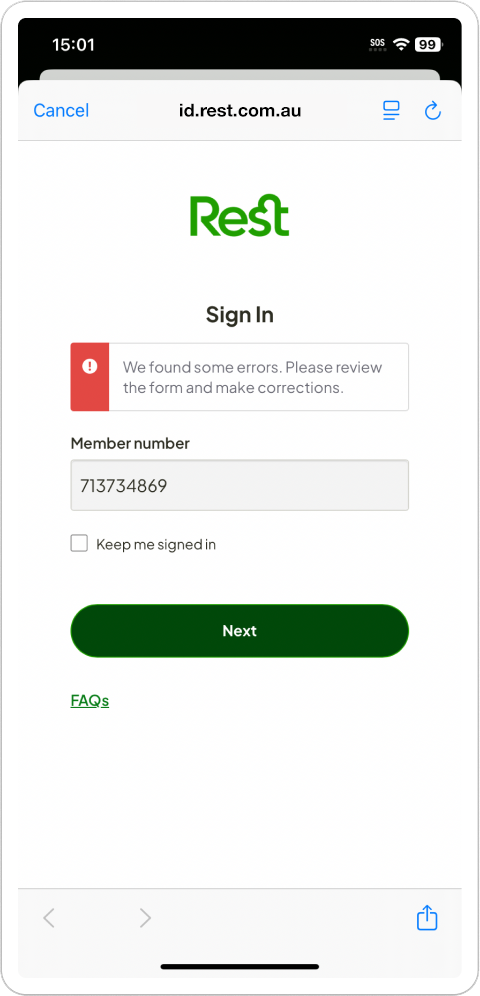
  3. Check your member number is correct.

If your device does not support these software versions, you can access your account via MemberAccess.  

Help setting up the Rest App

How do I set up the Rest App?


To set up the Rest App, follow the steps below:

  1. Click ‘Log in’ and follow the prompts
  2. Enter your member number
  3. Verify your identity with either your mobile or email
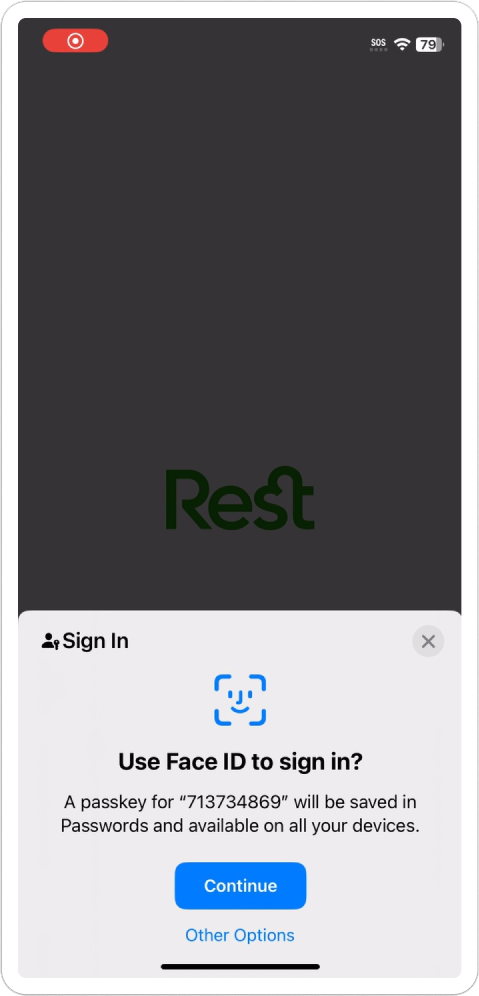
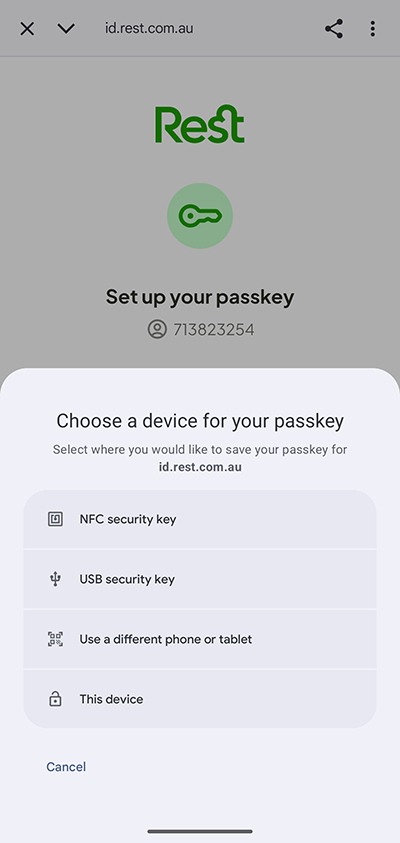
  4. Set up your passkey (Tip: Android users select ‘This device’)
  5. Enter a Rest Pin
  6. Log in   

Setting up your Rest App (IOS)


Setting up your Rest App (Android)

How do I set up a passkey?


If passkey is enabled on your device:

iOS:

Use your Face ID to sign in and save your passkey to your device. 

Android:

Select ‘This device’ when choosing your passkey option and follow the prompts. 

If you don’t have passkeys enabled, you will need to enable passkeys on your device to continue.

How do I enable passkey on my device?


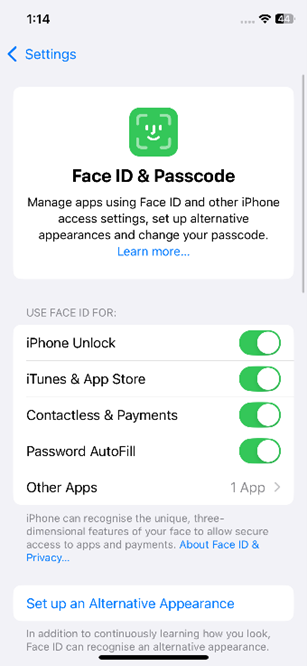
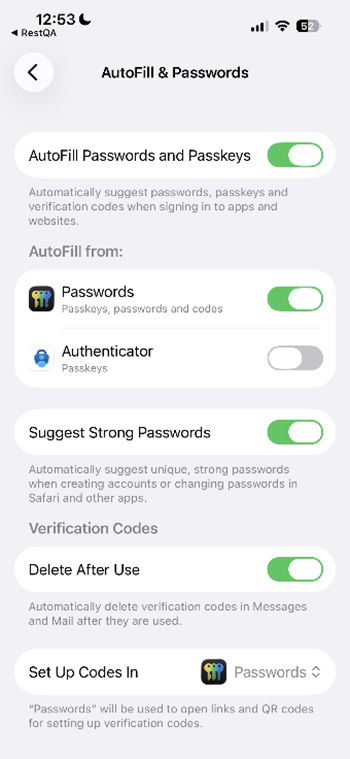
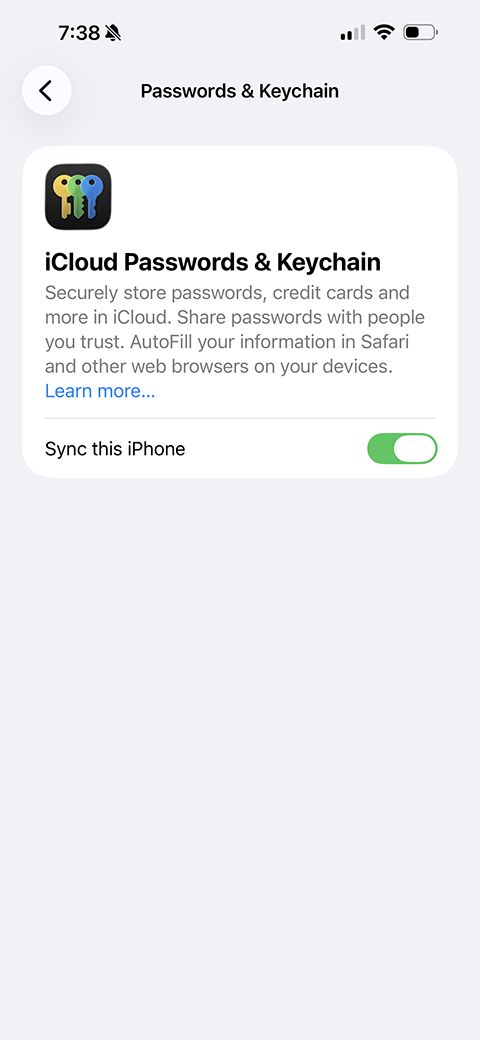
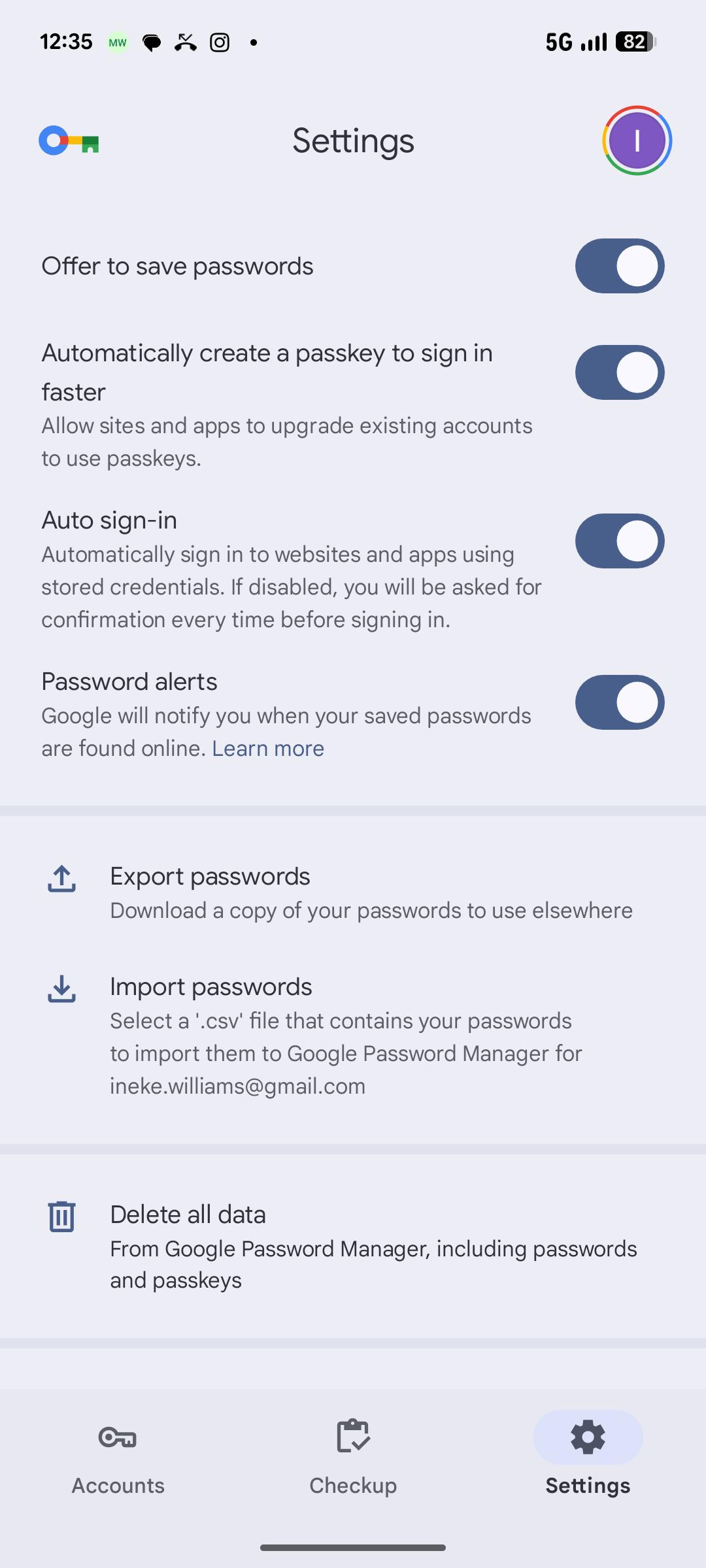
To enable your passkey, follow the steps below. The locations of your passkey settings may vary slightly from device to device.  Once your passkey is set up, you can continue to sign in with biometrics/PIN/pattern.

Apple:

  1. Settings
  2. Apple ID
  3. iCloud
  4. Passwords and Keychain   
  5. Enable iCloud Keychain
Screen displaying passkey setup on iOS phone.

Android:  

  1. Open Settings App 
  2. Select Google 
  3. Manage your Google Account 
  4. Security 
  5. Passkeys and security keys 

Can I set up my passkey with a passcode on iOS?


Yes, you can use your passcode to set up your passkey.

If you don’t have Face ID enabled a screen will appear to ‘Continue with Passcode’

  1. Select ‘Continue with Passcode ‘
  2. Enter your device passcode

If you selected ‘Other options’ select the passwords option to continue. 

Common member asks

What to do if my Rest App isn’t working?


There are a couple of things you can do:

  1. Ensure you have the minimum required device software. The app requires a minimum iOS 16.4 or Android 9
  2. Check you have the latest version of the Rest App. You can update or try re-installing the app in your app store.
  3. Check your member number is correct

If your device does not support these software versions, you can access your account via MemberAccess.

I have the right operating system and still can’t access the app?

The Rest App has platform restrictions on accessing the Rest App from certain countries due to security risks. If you are unable to get onto the app from a foreign country, contact us by messaging us on Live Chat or call us on 1300 300 778 if you’d like to make any changes to your account.   

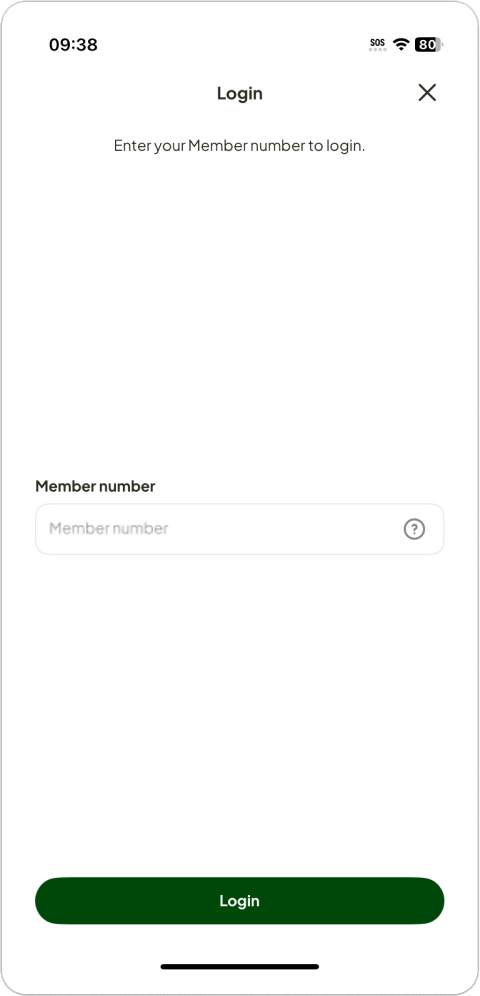
I can’t find my member number


You can find your member number on your Rest Digital Member Card or any annual statements, emails, or letters we’ve sent you. Usually it’s in the top corner of the correspondence. Jump into your email inbox and search ‘Rest’ to find the latest message from us. 

App screen showing member number field.

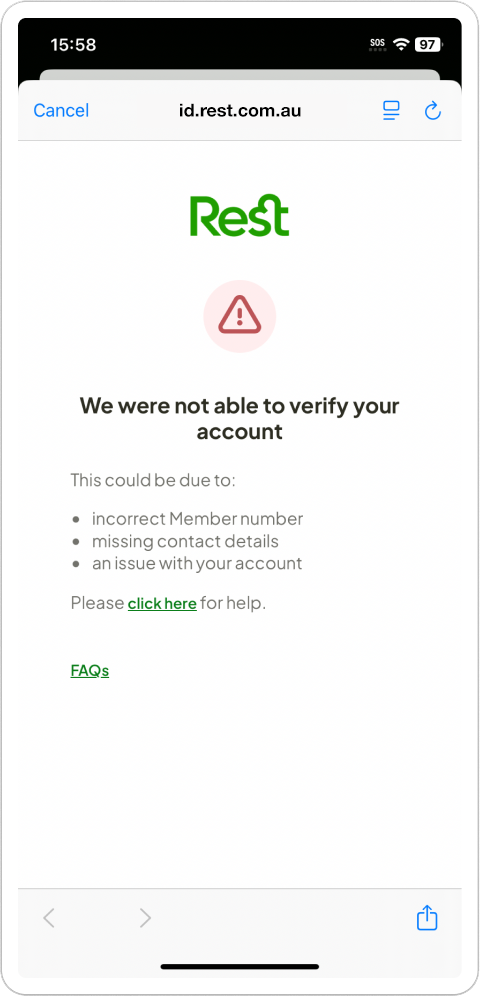
My account can’t be verified


There’s a number of reasons why this might happen, the most common are:

  • Incorrect member number
  • Missing contact details
  • An issue with your account

You will need to contact us to verify your account. The quickest way is to message us on Live Chat, type ‘login issues’ and follow the prompts.   

App screen displaying that account cannot be verified.

I’m receiving code errors


Most common causes:

  • Invalid code
  • Session expired
  • Inactivity
  • Too many accounts

Check you have entered the correct code within the time limit.

If it is still not working, you could try generating a new code.

Still experiencing issues, please contact us. The quickest way is to open Live Chat, type ‘login issues’ and follow the prompts

Message indicating errors were found with the verification code.

I’m not receiving a code


If you haven’t received your code try:

  • Try generating a new code

  • Sending the code using the other option (via email if you chose SMS or vice versa)  

If you’re still having trouble contact us. The quickest way is to open Live Chat, type ‘login issues’ and follow the prompts.

If you're using an international number

For security reasons some international numbers are blocked from receiving the verification code. When you upgrade your Rest App you can choose to receive the code by email instead.

How long do I have to enter the OTP (One Time Password) before it times out? 


You will have 5 minutes to enter your code. If it times out, try generating a new code. 

How many attempts do I have of the OTP (One Time Password)? 


 You’re allowed 5 attempts to enter your OTP. 

What happens if I have had too many attempts?


If you have been advised that you have made too many attempts, wait 15 minutes then you can try generating a new code. 

If you need access urgently or if you continue to be locked out, contact us.  

The quickest way is to open Live Chat, type ‘login issues’ and follow the prompts.

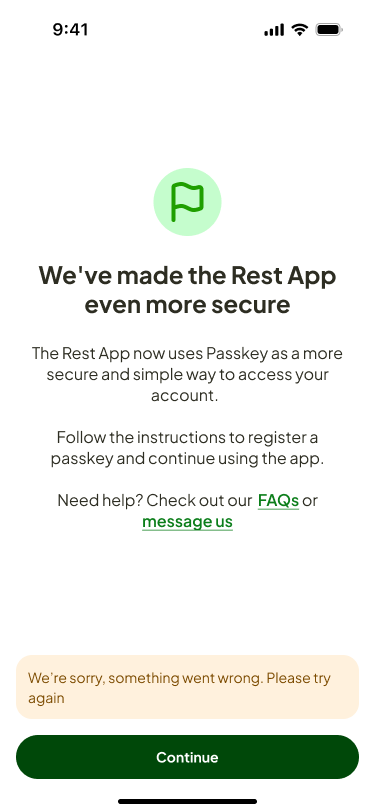
Something went wrong


You will need to contact us. The quickest way is to open Live Chat, type ‘login issues’ and follow the prompts 

App screen displaying a 'something went wrong' message.
Question mark enclosed in a circle

Suspect suspicious account activity?

If you received a one-time code you didn’t request, or suspect suspicious activity, please contact us immediately on 1300 300 778.

Additional troubleshooting

How do I check my phone’s operating system?


You can check your operating system by going to:  

Apple:

  1. Settings App
  2. General
  3. About  

Android:

  1. Settings App
  2. About 

The locations of your operating system settings may vary slightly from device to device.  

What do I do if I don’t have a phone that supports the system operating requirements? 


If you have a device that’s on an older version of the operating system, then you won’t be able to use the updated version of the app. You can use MemberAccess to access your account online.  

What will I need to register? 


To log into your online account, you will need:

  • Your member number
  • Both your email and mobile number on file

If you are missing or have incorrect details, you will need to contact us to update your details and verify your identity before accessing the Rest App or MemberAccess. The quickest way is to open Live Chat, type ‘login issues’ and follow the prompts.

What if I can’t register because I have missing or incorrect details? 


You will need to contact us, so we can verify your identity and update your details.  

The quickest way is to message us on Live Chat, type ‘login issues’ and follow the prompts.  

Available from Monday to Friday 8am-8pm or Saturdays 9am-5pm (AEST/AEDT).  

If I change from iOS to Android or vice versa, do I need to re-register? 


You will need to contact us and reset your multi-factor authentication.  

The quickest way is to message us on Live Chat, type ‘login issues’ and follow the prompts  

What happens if I upgrade my iOS or Android phone? 


As long as you are using the same Apple or Google email ID as before you will not have to re-register. 

If you are using a new email ID, you will need to contact us and reset your multi-factor authentication.  

The quickest way is to message us on Live Chat, type ‘login issues’ and follow the prompts.  

Do I need to register for a separate MFA platform? 


No, MFA is automatically integrated into your experience. 

What if I lose my device? 


If you lose your device, we recommend contacting us to reset your security on your account before logging in on the new device. The quickest way is to message us on Live Chat, type ‘login issues’ and follow the prompts.

What if I forgot my pin? 


Select ‘Forgot your Pin?’ when you open the Rest App. 

You’ll be taken to the registration page to set up your app again. 

What is required if I have multiple accounts? 


If you have more than one account, and they are linked, you can now switch between them in the Rest App. 

If you have not previously linked your accounts, you will need to contact us to link your accounts, prior to registering for the app. 

This reduces the time it takes to log in to all your accounts and makes it easier to keep track of your super. 

How do I know if my accounts are linked? 


Your accounts will only be linked if you have previously contacted us and asked us to link them. 

I don’t have a mobile and cannot receive SMS


For security reasons, you will be required to have a mobile phone number on file to verify your identity when using the Rest App and MemberAccess.

Message us on Live Chat or call us on 1300 300 778 if you’d like to make any changes to your account. 

I am not receiving the registration emails when being set up for the first time? 


Check that the correct email address has been registered. If the email is correct, check your junk/spam inbox and mail filters.

If you’re still having trouble message us on Live Chat, type ‘login issues’ and follow the prompts.

I am receiving an account closed screen


If your account is closed, you won’t be able to access the Rest App. If this doesn’t seem right, message us on Live Chat, type ‘chat to agent’ and follow the prompts.

Still having trouble?

 If you’re having trouble accessing your account, contact us for help.